How to Edit an Instagram Story: The Complete Guide (2026)
Contents
The Instagram Story editor hides most of its best tools. The obvious ones sit on the top bar, but the things people actually search for, a solid background color, several photos in one frame, a clickable link, a music track, are tucked behind the sticker tray and a couple of gestures nobody tells you about. This is the complete map: one clear how-to for every part of the Story editor, with the tricky gestures spelled out exactly.
Unless noted, every step happens inside the Story editor, the screen you reach after you take or select a photo or video and before you tap "Your story."
Key takeaways
- Length: photos show about 7 seconds (up to 15 with music), video runs up to 60 seconds per clip, and longer video auto-splits into back-to-back segments.
- Background color: select a photo, tap the pen tool, pick a color, then press and hold the screen to flood-fill it. Shrink a photo on top to show the color around it.
- Collage: use Layout mode in the Story camera for a clean 2 to 6 photo grid.
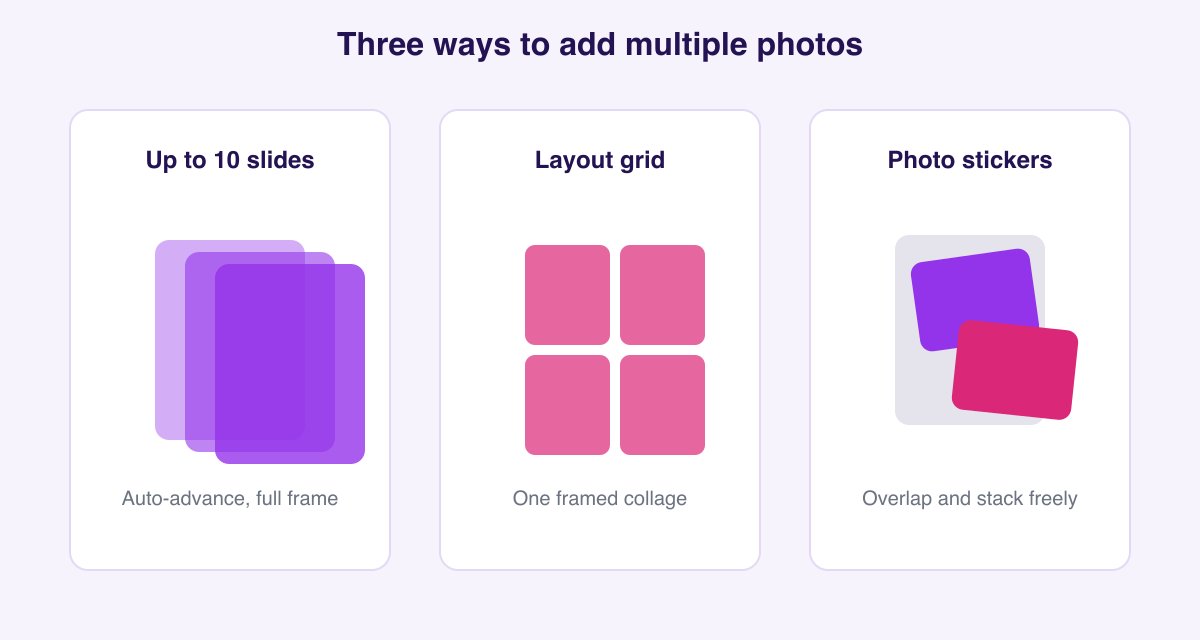
- Multiple photos: three ways, upload up to 10 slides, one Layout grid, or layered photo stickers.
- Links: the Link sticker is open to every account now, no 10,000-follower minimum.
- After posting: you cannot truly edit a live story, you can only tweak settings or add it to a Highlight.
How long can an Instagram Story be?
A quick reference, because this is the fastest thing to answer:
| Content | How long it shows or runs |
|---|---|
| Photo | About 7 seconds by default |
| Photo with music | Stretches to 15 seconds |
| Video clip | Up to 60 seconds as one segment |
| Longer video | Auto-split into consecutive segments |
| Every story | Disappears after 24 hours |
There is no meaningful cap on how many stories you can post in a day, though posting a very large batch at once can get the later ones shown to fewer people.
How to change your Instagram Story background color
This is the trick almost nobody finds on their own, and it has more variations than any guide covers. Start with the basic solid fill, then use the variations for the look you actually want.
Solid background color
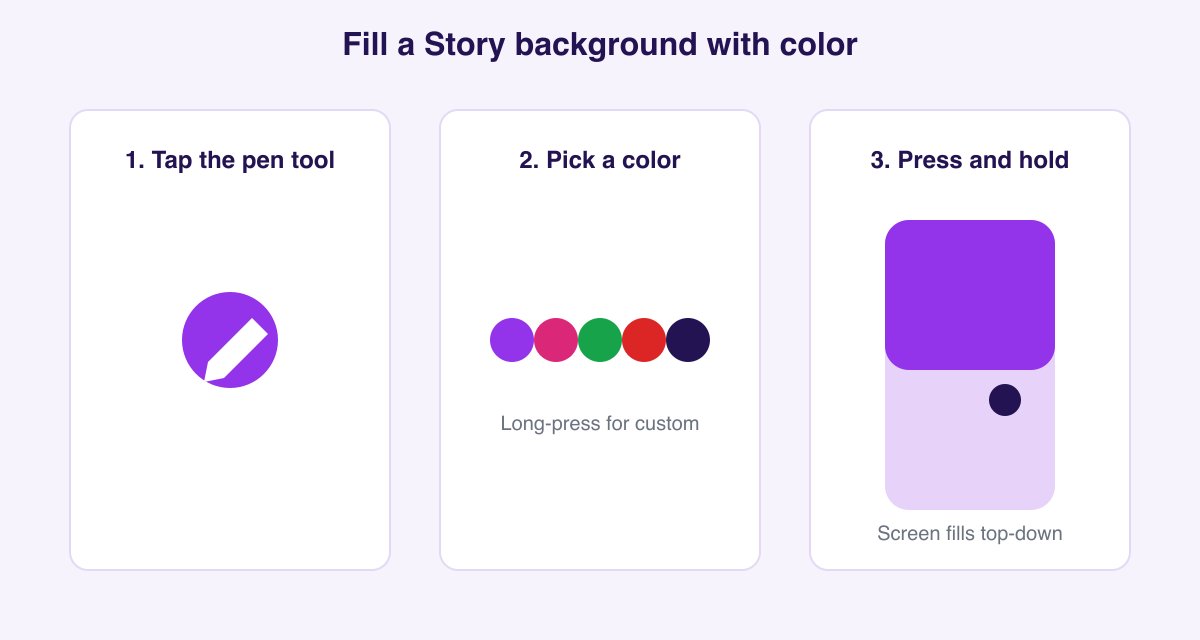
- In the Story editor, select any photo. It can be a throwaway, you are about to cover it completely.
- Tap the pen or draw tool at the top.
- Pick a color from the row at the bottom.
- Press and hold anywhere on the screen for about two seconds. The color floods the whole screen.
A single quick tap instead of a hold lays down a translucent tint that lets the photo show through, which is a nice effect in its own right. Press and hold for the full solid fill.
Custom colors, the eyedropper, and gradients
- Custom color: press and hold any swatch in the color row to open the full spectrum picker, then drag to the exact shade you want.
- Eyedropper: in the color picker, the eyedropper icon lets you match a color pulled directly from your photo, which is perfect for a background that ties into your image.
- Gradient look: the default palette scrolls through a set of colors. Swiping the palette gives you Instagram's built-in gradient shades rather than a flat color.
A colored background behind a photo that does not fill the screen
This is the part every competing guide skips, and it is the one most people actually want. To place a photo on a colored background:
- Copy a photo from your gallery (open it in Photos and tap Copy).
- In Instagram, create a solid-color story using the flood-fill steps above.
- Tap the screen and choose Paste when the sticker prompt appears. The photo drops in as a sticker.
- Pinch it smaller and drag it to the center. The color now frames the photo on all sides.
A background behind a re-shared post
The same shrink trick works when you add a feed post to your story. After you tap "Add post to your story," the post appears as a card. Flood-fill a color first, then pinch the post card smaller so the color surrounds it, instead of leaving Instagram's default gradient behind it.
How to make a collage with the Layout tool
Layout is the cleanest way to show several photos at once in a single frame:
- Open the Story camera (swipe right from the feed, or tap your profile picture with the plus).
- In the modes down the left side, tap Layout.
- Pick a grid: 2, 3, 4, or 6 cells.
- Fill each cell by taking a photo or choosing one from your gallery.
- Tap the checkmark to flatten the grid into one story image, then add stickers or text.
How to add multiple photos to one Story
There are three different ways, and picking the right one is half the battle. Here is when to use each.
Method 1: Upload up to 10 as separate slides
When adding photos to your story, tap the select multiple icon and choose up to 10. Instagram posts them as separate, back-to-back story slides that auto-advance. Use this when each photo deserves its own full frame.
Method 2: One Layout collage
Use the Layout tool above to put 2 to 6 photos into a single gridded frame. Use this when you want them all visible at once, tidily.
Method 3: Layer photo stickers
- Add your base photo or video.
- Tap the sticker icon, then the photo sticker (it shows your most recent gallery image).
- Pick a photo. It drops in as a movable, resizable sticker.
- Pinch to resize, drag to place, and tap it to change the crop shape. Repeat to add more.
Use this scrapbook style when you want photos to overlap, tilt, and stack over a background.
How to add music to your Story
- Tap the sticker icon at the top.
- Choose the Music sticker.
- Search for a song, tap it, then drag the slider to pick the exact section.
- Choose a display style (album art, lyrics, or a compact bar) and place it.
On a video story the track plays under your clip. On a photo story it stretches the photo to 15 seconds while the music plays. If the Music sticker is missing, your account type or region may not have licensed music enabled, which is a platform limitation.
How to add a link to your Story
- Tap the sticker icon and choose the Link sticker.
- Paste or type the URL.
- Tap Customize sticker text to show friendly words instead of the raw link, then place it.
The Link sticker is now available to every account with no follower minimum, which replaced the old swipe-up link that required 10,000 followers. You can add one link per story slide.
How to tag someone in your Story
- Tap the sticker icon and choose the Mention sticker (the @ symbol), or type an @ followed by a username with the text tool.
- Enter the person's @username and select them.
- Place the tag.
The tagged account gets a notification and, if their settings allow, can reshare your story to their own. That reshare flow is covered in how to repost a story on Instagram. You can tag a private account, but only its approved followers will be able to tap through to it.
Other editing tools worth knowing
- Text: tap anywhere to type, then use the fonts, alignment, and color options along the top. Tap and hold a color swatch for the custom picker here too.
- Filters and effects: swipe left or right on the camera, or tap the effects icon, to browse face filters and color looks.
- Stickers: beyond music, link, and mention, the tray holds polls, quizzes, sliders, questions, countdowns, location, GIFs, and more, each of which adds interaction.
- Draw: the pen tool has several brush styles, including a neon and a highlighter, plus the eraser.
Can you edit an Instagram Story after posting it?
Not really, and this trips people up. Once a story is live you cannot change the photo, text, or stickers on it. Your only options are to delete it and post a corrected version, adjust who can see it or reply through the story's settings, or add it to a Highlight as is. If a typo or wrong tag is bad enough, deleting and reposting is the honest fix.
Save and back up the Stories you make
Everything you just built disappears in 24 hours unless you save it. Two habits are worth forming:
- Keep your own. Instagram archives your expired stories privately, and you can resurface or export them later. Our guide on how to unarchive a story covers where the Archive lives and how to get a permanent copy out of it.
- Save ones you love. To hold on to a public story before it expires, paste its link into the Instagram Story Downloader for the original photo or video at full quality. For a whole Highlight, the Highlights Downloader pulls every clip at once. Saving by link is anonymous and sends no notification, as we explain in does Instagram notify screenshots or downloads.
FAQ
Why can't I change the background color on my Instagram Story? You need to select a photo first, then tap the pen tool, pick a color, and press and hold the screen. A quick tap only lays a translucent tint. If nothing fills, hold longer, for about two seconds.
How do I add a background color behind a photo that does not fill the screen? Copy the photo from your gallery first, create a solid-color story with the flood-fill trick, then paste the photo and pinch it smaller so the color frames it.
How many photos can I add to one Instagram Story? Up to 10 as separate auto-advancing slides, or 2 to 6 in a single Layout collage, or as many as you like layered as photo stickers.
What is the difference between the Layout tool and photo stickers? Layout arranges photos into a tidy grid in one frame. Photo stickers let you overlap, tilt, and stack images freely over a background. Slides post each photo full-screen, one after another.
How long can an Instagram Story video be? Up to 60 seconds as a single segment. Anything longer is split into consecutive segments automatically.
Why is my photo Story only 7 seconds? How do I make it longer? A plain photo shows for about 7 seconds. Adding music stretches it to 15 seconds. There is no manual duration slider for a plain photo.
Can I add more than one link to a Story? One link sticker per story slide. To share several links, split them across slides or link to a landing page that holds them all.
Do I still need 10,000 followers to add a link? No. The Link sticker is open to all accounts now. The old swipe-up link that needed 10,000 followers is gone.
Can I tag someone whose account is private? Yes, but only their approved followers will be able to tap the tag through to the account.
Can I edit an Instagram Story after posting it? No. You can delete and repost, change its settings, or add it to a Highlight, but you cannot edit the content of a live story.
How do I save or download my Instagram Story? Add it to a Highlight to keep it on your profile, export it from your Archive, or download any public story by link with the Story Downloader.