Instagram Carousel: Sizes, How It Works, and How to Download Every Slide
Contents
The carousel quietly became Instagram's most important format. Photo dumps, recipe steps, before-and-afters, infographic threads: the posts people actually save and revisit are almost all multi-slide. Yet it's also the format that confuses people most: what counts as a carousel, what size should the images be, why can't you reorder slides, and the question that brings most people here: how do you download all the photos from one post at once?
This guide answers all of it.
Key takeaways
- A carousel holds up to 20 photos and videos in one swipeable post, also called an album, multi-photo post, or photo dump.
- Recommended size is 1080 × 1350 (4:5); the first slide's aspect ratio crops every slide after it.
- To download every slide at once: copy the post link, paste it into the carousel downloader, and choose Download All for a numbered ZIP.
- Most tools save only the first photo because a post's public preview exposes just one child item. Reading the full media list is what captures all 20.
- Mixed photo-and-video albums keep each slide's native format: JPG for photos, HD MP4 with sound for videos.
- You can delete slides from a published carousel but never add or reorder them, which is why archiving the original matters.
What is a carousel on Instagram?
A carousel (also called an album, multi-photo post, swipe post, or photo dump) is a single Instagram post containing up to 20 photos and videos that viewers swipe through horizontally. You can spot one by the stacked-squares icon in a profile grid and the dot indicator under the post in the feed.
The format has grown steadily: carousels launched in 2017 with a 10-slide cap, and Instagram raised the limit to 15 and then to 20 slides. Music can be attached so the album plays like a slideshow, and photos and videos can be mixed freely in one post.
Carousels matter for a simple algorithmic reason: each slide is another chance for the post to appear in feeds, and Instagram re-serves unfinished carousels to viewers who didn't swipe to the end. That's why engagement rates on carousels consistently beat single-image posts, and why creators pack their best content into them.
Instagram carousel sizes and specs (2026)
The current specs, which apply to every slide in the album:
| Spec | Value |
|---|---|
| Slides per post | 2–20 |
| Square format | 1080 × 1080 (1:1) |
| Portrait format (recommended) | 1080 × 1350 (4:5) |
| Landscape format | 1080 × 566 (1.91:1) |
| Mixing ratios in one post | No; the first slide's ratio crops all others |
| Photo format | JPG (converted on upload) |
| Video slides | MP4, up to 1080p, up to 60 seconds each |
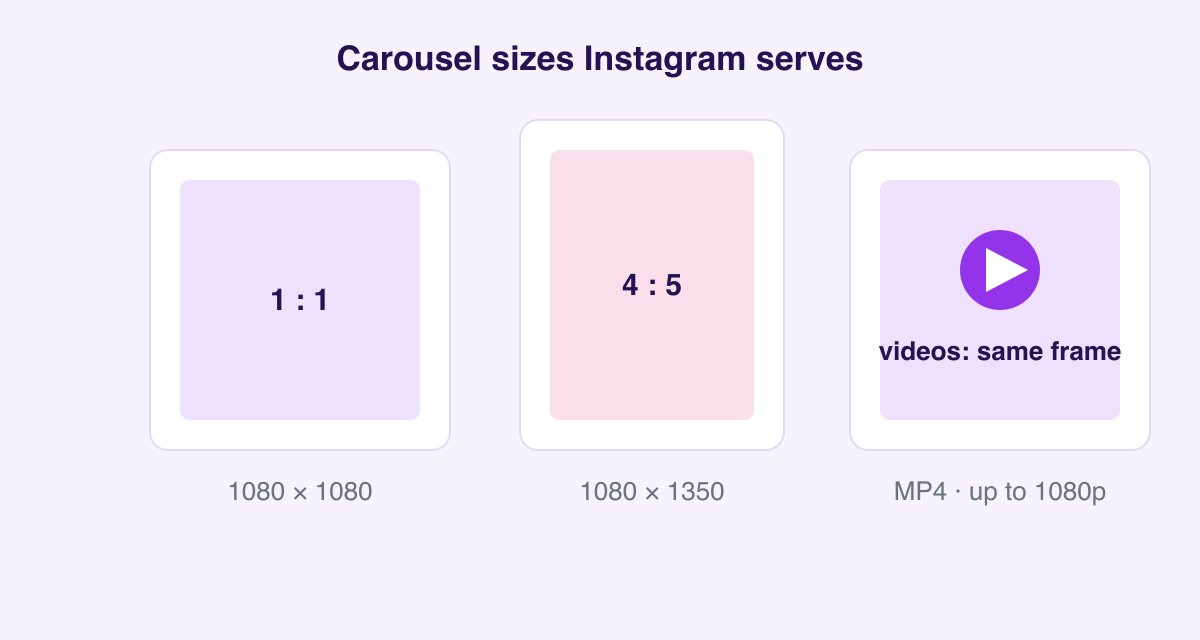
Two practical notes. First, 4:5 portrait is the right choice for almost everything: it fills the most screen and survives the crop on every surface. Second, the first slide dictates the aspect ratio for the entire album, so pick it deliberately: a square slide 1 crops nineteen portrait slides after it.
How to download all photos from an Instagram post
Here's the part most guides skip or get wrong. Saving a carousel by screenshot means capturing up to 20 frames by hand, each compressed, cropped, and stamped with your battery indicator. The clean way takes three steps:
- Copy the post link. Open the carousel, tap the three-dot menu (or share arrow), choose Copy Link. Any public album works.
- Paste it into the Instagram Carousel Downloader. Every slide appears in a preview, photos and videos alike, each with its own download button.
- Download what you want. Grab individual favorites, or hit Download All to receive the entire album as one ZIP file with slides numbered in their original order.
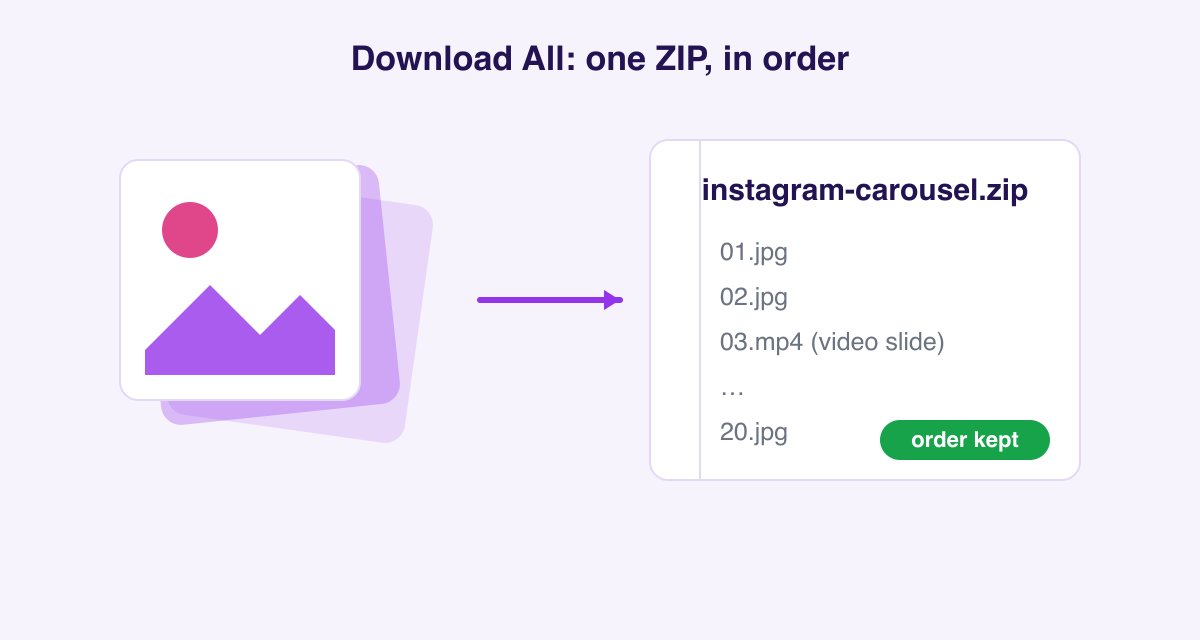
Photos arrive as full-resolution JPGs and video slides as HD MP4s with sound. On iPhone, the ZIP opens natively in the Files app (tap to extract); on Android, the built-in Files app handles it; on desktop, it's a double-click.
Why most downloaders only save the first photo
If you've tried other tools and gotten exactly one image from a 15-slide dump, here's what happened. Instagram stores a carousel as a parent post with child media attached: one link and caption up top, with each slide as a separate media object underneath. The post's public preview data (what simple scrapers read) exposes only the first slide.
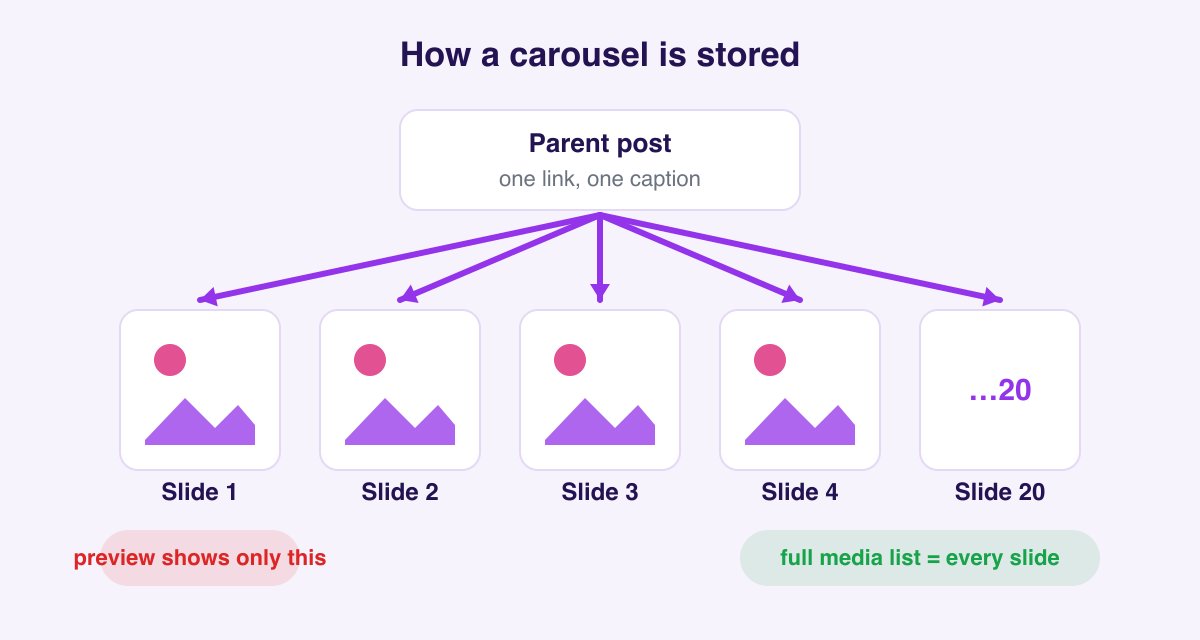
Tools that stop at the preview save slide 1 and call it done. A proper carousel downloader queries the full media list behind the post and enumerates every child object, which is why all 20 slides show up in our preview, videos included, in order.
Downloading mixed photo-and-video albums
Mixed carousels (nine photos and a clip in the middle) are fully supported and surprisingly common. Each slide keeps its native format: photos as JPG, videos as MP4 with their original audio. The ZIP preserves both the formats and the sequence, so 03.mp4 sits exactly where the creator placed it between 02.jpg and 04.jpg. If you only want the videos from an album, download just those slides individually, or use the video downloader for single-video posts.
Why carousels outperform single posts
If you're making carousels rather than just saving them, the format's mechanics are worth understanding, because they explain why so much of the content worth downloading is multi-slide.
Instagram gives a carousel multiple chances to land. If someone scrolls past without swiping, Instagram may re-serve the post later showing a different slide as the cover. One post, several impressions.
Swiping is a ranking signal. Time-on-post and interaction both feed the algorithm, and a 10-slide carousel holds attention far longer than an image someone scrolls past in half a second.
Saves concentrate in carousels. Reference-style content (recipes, workout splits, checklists, tutorials) is inherently multi-step, and saves are among the strongest signals Instagram tracks. That's also precisely the content people want to download for offline use.
Practical implications for creators: put a hook on slide 1 and your payoff after slide 2 so the swipe is earned, keep text large enough to survive the feed's downscaling, and end with a call to action on the final slide where engaged readers land.
Making a seamless carousel
The panorama-style carousel (one wide image split across slides so it scrolls like a continuous scene) is a common request and a simple trick:
- Build a canvas that's
1080 × Nwide (N = number of slides) at 1350px tall for 4:5. - Design across the whole canvas, keeping important elements away from slide boundaries.
- Slice it into equal 1080px-wide sections, exporting each as its own image.
- Upload the slices in order, since Instagram preserves the selection sequence.
Free tools (Canva's carousel templates, Figma slices) automate the slicing. Note that Instagram adds a small gap between slides in the feed, so a truly invisible seam isn't achievable. Design with that in mind rather than fighting it.
Troubleshooting carousel downloads
Only one slide appeared. The link probably points to a single-photo post rather than an album, or you copied a Story link. Confirm the post shows dots underneath in the app.
The link doesn't work at all. Check the account is public and the post still exists; deleted posts and private accounts return nothing by design. Also make sure you copied the full URL, not a shortened share text.
The ZIP won't open on iPhone. Use the Files app rather than Safari's preview: Downloads → tap the ZIP → a folder appears beside it. If you tapped it inside a chat app, save it to Files first.
Video slides play without sound. That's usually the source, since some creators mute clips before posting. Our Reels audio guide covers the full diagnosis.
Photos look softer than expected. Instagram compresses at upload; the downloaded file matches what the app serves and can't exceed it. Details in the Full HD guide.
Editing carousels after posting (and what's impossible)
Worth knowing before you post one, because it explains why archiving matters:
- You can delete individual slides from a published carousel (three-dot menu → Edit → tap the trash icon on a slide).
- You cannot add slides or reorder them after publishing. The only fix for a wrong order is deleting and reposting the entire album.
- Deleting a slide is permanent, and Instagram doesn't keep a version history.
That asymmetry is exactly why people archive their own carousels: download the complete album before editing, and you can never lose a slide you meant to keep. Your own posts download the same way as anyone's: paste the link.
Quick answers
How many pictures can you put in one Instagram post? Twenty, in a single carousel. Older posts may have ten or fifteen, the cap at the time they were published.
Can I download someone's whole carousel without them knowing? Yes. Instagram sends no notification for downloads, and pasting a link doesn't register a view. Details in our notifications guide.
Will downloaded slides keep their quality? Yes. You get the files Instagram itself serves: full-resolution JPGs and HD MP4s, no watermark, no re-compression. For why quality tops out at 1080p, see the Full HD download guide.
Can I download a carousel from a private account? No, public posts only. Any tool claiming otherwise wants your password; don't give it one.
What about Stories with multiple photos? Multi-photo Stories are separate Story frames, not a carousel. The Story downloader grabs those, frame by frame, before they expire.
Is there a limit on how many albums I can download? No. Unlimited albums, free, no account, on any device.