How to Download Instagram Reels With Audio (2026 Guide)
Contents
You found a Reel you want to keep: a recipe, a workout, a song edit. The obvious tricks all disappoint. Screen recording captures your notification sounds and drops frames. Some downloader apps hand you a silent MP4. Others slap a watermark across the middle of the clip.
This guide covers the whole territory: how to save Reels with their original audio, how to get just the audio, whether you need an app at all, what "HD" and "4K" really mean for Reels, and how to fix the downloads that come out silent.
Key takeaways
- Copy the Reel's link and paste it into a link-based downloader. The audio arrives intact because you get the same merged MP4 the app plays.
- Screen recording is the main cause of silent saves; it re-encodes the video and iOS can mute media audio during capture.
- For audio only: download the MP4 first, then extract the sound with iPhone Shortcuts, CapCut, or VLC/ffmpeg, with no quality loss.
- You don't need an app. A browser works on iPhone and Android, and sideloaded downloader APKs are a common source of adware.
- 4K Reels don't exist. Instagram's ceiling is 1080×1920, so any "4K download" claim is upscaling.
- Still silent? The original is probably muted, or the licensed track is region-restricted in your country.
Why downloaded Reels end up silent
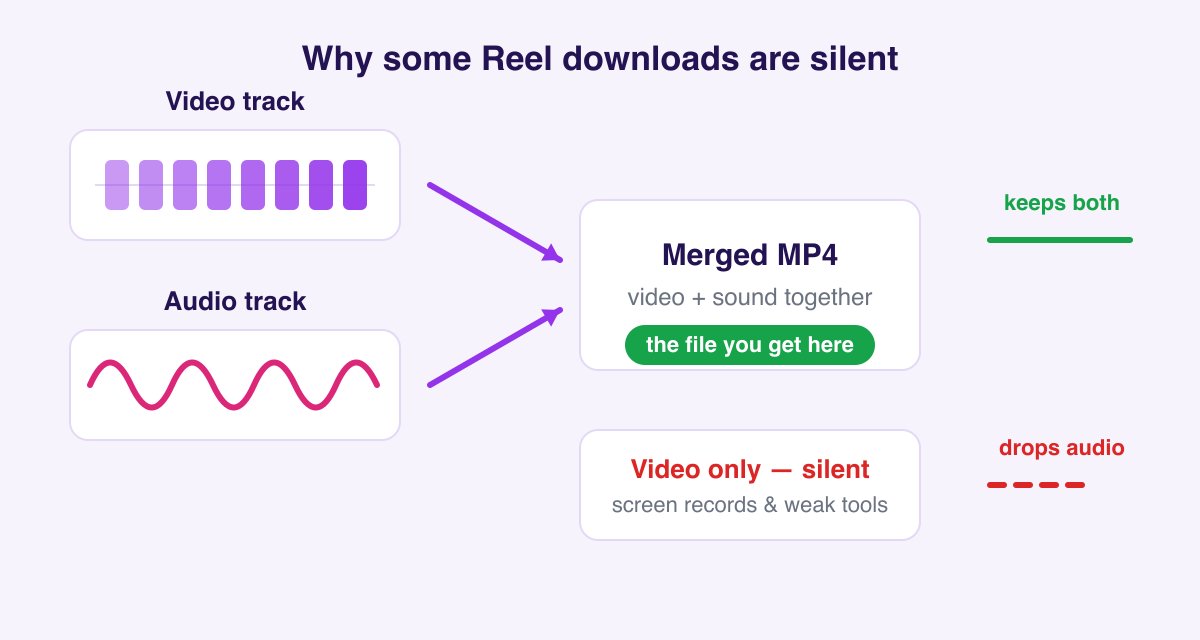
Instagram doesn't store a Reel as one simple video file. Under the hood, the video track and the audio track are delivered separately and merged by the player. That architecture is why the common approaches fail:
| Method | What goes wrong |
|---|---|
| Screen recording | Captures at your screen's resolution, drops frames, and on iPhone can silence media audio entirely during capture |
| Instagram's "Save" button | Bookmarks the post to a collection inside the app; nothing lands in your camera roll |
| Low-quality downloader sites | Grab only the video stream and skip the audio track, or re-encode both into a blurry, watermarked file |
| "Reels download apps" from outside app stores | Frequently ad-stuffed APKs; the download is the bait, the adware is the product |
A proper downloader requests the same merged MP4 rendition that Instagram's own player uses: video and audio together, at the highest quality the platform serves.
How to download a Reel with sound in 3 steps
- Copy the Reel's link. In the Instagram app, open the Reel, tap the share arrow, and choose Copy Link. On desktop, copy the URL from the address bar.
- Paste it into the Instagram Reels Downloader. The tool detects the Reel and fetches the source file, original audio track included.
- Tap Download. You get a clean MP4 with sound, no watermark, ready for your camera roll or editing app.
The same flow works for regular feed videos through the Instagram Video Downloader, for Reels shared to Stories via the Story Downloader, and for multi-clip album posts through the Carousel Downloader.
Getting the file into your camera roll
iPhone (Safari): the MP4 lands in your Downloads folder inside the Files app. Open it, tap the share icon, and choose Save Video. It's now in Photos like any clip you filmed. If Safari plays the video in a tab instead of downloading, long-press the video and pick Download Linked File.
Android (Chrome): the file saves straight to your Downloads folder and most gallery apps index it automatically within seconds. If yours doesn't, open the Files app, long-press the MP4, and use Move to → your DCIM or Movies folder.
Desktop: it's a normal MP4 in your Downloads directory, so drag it into any editor or player.
How to download only the audio from a Reel
Searches for Instagram Reels audio download have exploded, and there's a clean two-step answer. First grab the full MP4 with the Reels downloader, audio intact. Then extract the sound locally with a free tool you already have:
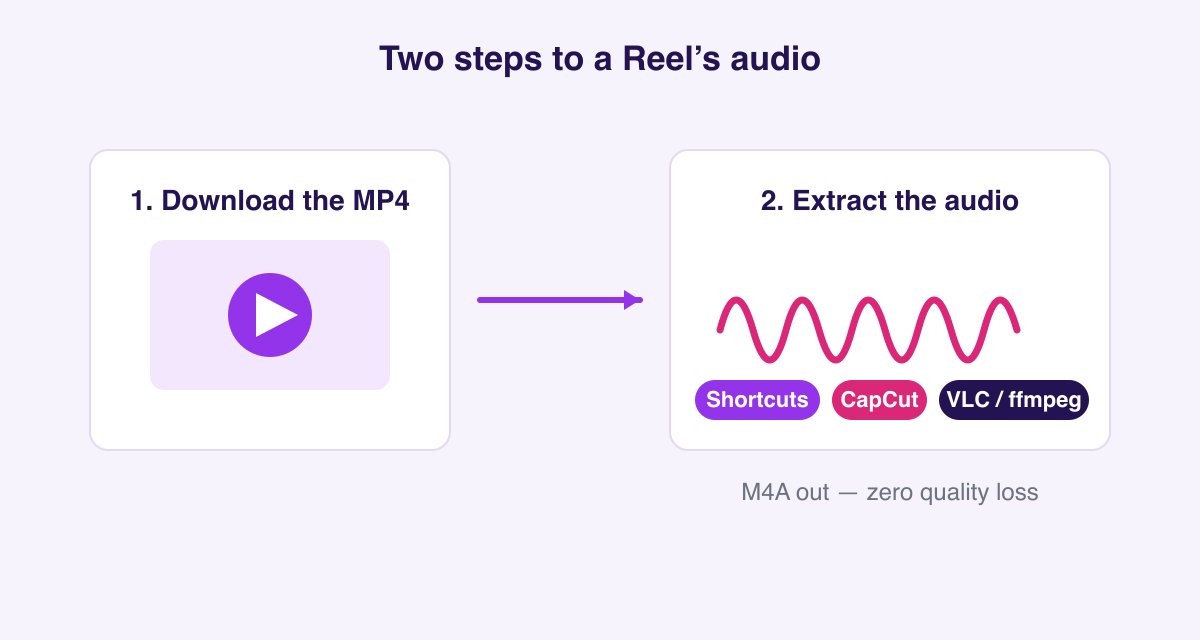
- iPhone: the Shortcuts app has a ready-made pattern. Create a shortcut with the Encode Media action set to Audio Only, share the video to it, and you get an M4A in seconds.
- Android: CapCut (or any audio-extractor app) imports the MP4 and exports audio with one tap.
- Desktop: open the MP4 in VLC → Media → Convert/Save → Audio profile; or if you're comfortable with a terminal:
ffmpeg -i reel.mp4 -vn -c:a copy audio.m4a, which is instant and lossless.
One caveat worth knowing: if the Reel uses a licensed song from Instagram's music library (rather than the creator's own "original audio"), that track belongs to the label. Extracting it for personal listening is one thing; reusing it in your own published content is a licensing question, not a technical one.
Do you need a Reels download app?
No, and it's worth being direct about why. The Play Store and App Store periodically purge downloader apps for policy violations, so the surviving "Reels download apps" mostly live as APK files on random websites. Those installs ask for broad permissions, inject ads, and sometimes bundle worse. A browser-based downloader gives you the identical file with none of that: nothing to install, nothing to update, no permissions, and it works the same on iPhone, where sideloading isn't even an option.
The only thing an app genuinely automates is sharing the link: with a browser tool, the copy-paste takes about four seconds.
How to find the song used in a Reel
A related question with a surprisingly poor answer elsewhere: you saved a Reel and now want the track, not the clip. Three approaches, in order of reliability:
- Tap the audio name. At the bottom of any Reel, the scrolling audio label links to the audio page, which names the song and artist for library tracks. This fails only when the creator uploaded original audio.
- Check the Reel's audio page for "original audio." If it reads Original audio with the creator's @username, there's no library track to find; the sound belongs to that creator's clip.
- Identify it acoustically. Play the downloaded MP4 and let Shazam or Google's Song Search listen. This works even on original-audio Reels that used a song in the background, which is exactly where the first two methods dead-end.
Once identified, stream the track legitimately rather than ripping it. Better quality, and it supports the artist.
Saving several Reels efficiently
There's no legitimate bulk endpoint that takes an account and dumps every Reel. Anything advertising that is scraping at a scale Instagram rate-limits and blocks. What works reliably is a fast manual loop: open the Reel, share arrow, Copy Link, paste, download, repeat. It takes roughly ten seconds each.
Two things speed it up meaningfully. On iPhone, add the browser tab to your Home Screen so the tool is one tap away rather than buried in tabs. And build a habit of copying links as you browse: your clipboard history (Gboard on Android, third-party managers on iOS) lets you queue several and download them in one sitting.
For a creator's whole grid of images, the profile downloader and carousel downloader cover more ground per paste than one-Reel-at-a-time.
Can you download Reels in 4K?
Short answer: no, because Instagram doesn't serve 4K. Reels are delivered at a maximum of 1080×1920. Even when the creator filmed and uploaded in 4K, Instagram transcodes it down. Any site advertising "4K Reels download" is either upscaling the 1080p file (adding pixels, not detail) or simply lying in its marketing. What you can control is getting the true full-HD rendition rather than a bandwidth-throttled 480p stream, which is exactly what a proper downloader fetches. For the deeper story on renditions and why some downloads look blurry, see our guide to Instagram video quality and MP4 downloads.
Still silent? Three things to check
The original Reel has muted audio. Some creators post Reels with the sound turned off. Open the Reel in the app and confirm it actually plays sound there first.
The music was region-restricted. When a label restricts a song in your region, Instagram swaps in silence, and the downloaded file faithfully reproduces what Instagram serves. Reels using the creator's "original audio" rather than licensed library music almost never have this problem.
You screen-recorded it. iPhones in particular mute media audio during screen capture in several situations. Skip screen recording entirely; a direct download is faster and cleaner anyway.
A quick word on rights
Downloading a public Reel for personal, offline viewing is what these tools are for. The audio and video still belong to their creators: reposting someone's Reel as your own, or using a commercial track in your own content, needs permission. When in doubt, credit the creator and ask.
FAQ
Will the creator know I downloaded their Reel? No. Instagram sends no notification for downloads or screenshots of Reels. The only notified action on the entire platform is screenshotting a disappearing photo in DMs. Full breakdown in our notifications guide.
Does this work without logging in? Yes. Public Reels download without any account, login, or app install. Never give your Instagram password to a downloader site; no legitimate one needs it.
What format and quality do I get? MP4 with AAC audio, at the highest resolution Instagram serves for that Reel, typically 1080×1920 for recent uploads.
Can I download a Reel that uses trending music? Yes. The downloaded MP4 contains the full mixed audio exactly as it plays in the app, whether that's original audio or a library track (unless Instagram has muted it in your region, as covered above).
Can I save my own Reels with the audio? Yes, and it's the best way to back up your work: Instagram's own "save to device" option sometimes strips licensed music from your exported file, while downloading your published Reel by link preserves the final mix.
Does it work for Facebook Reels too? This tool is built for Instagram. Facebook serves Reels through a different system, so paste Instagram links only.
Will there be a watermark? No. The file comes exactly as Instagram serves it: no watermark added by us, and none from Instagram either (unlike TikTok exports).